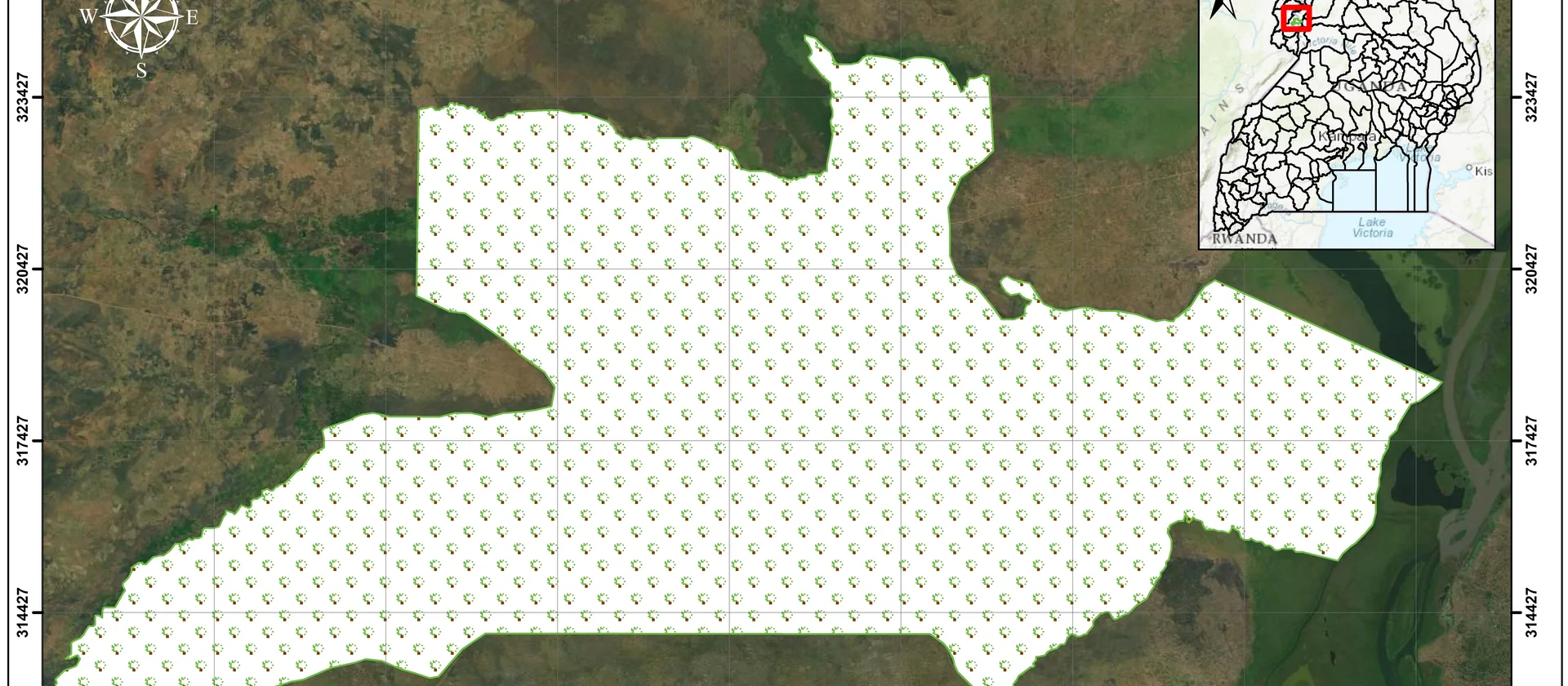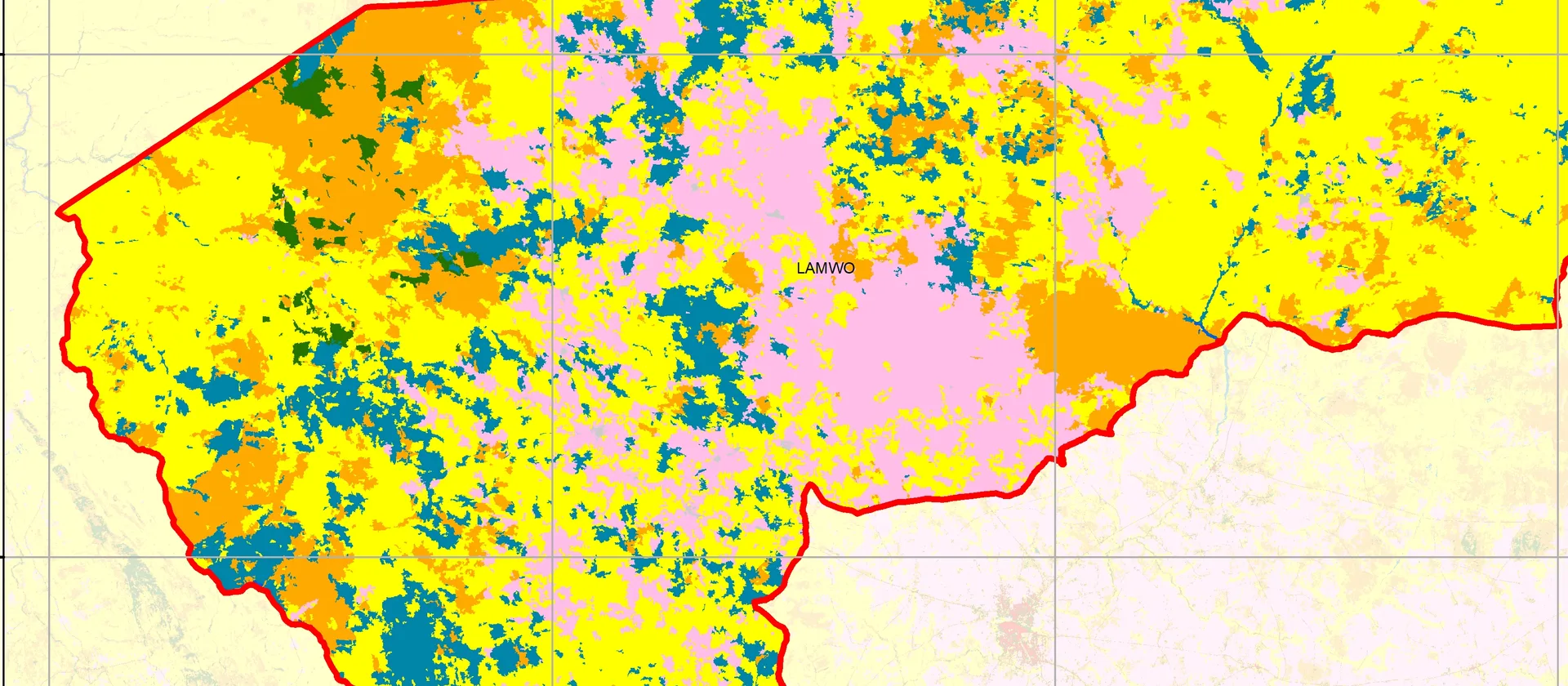
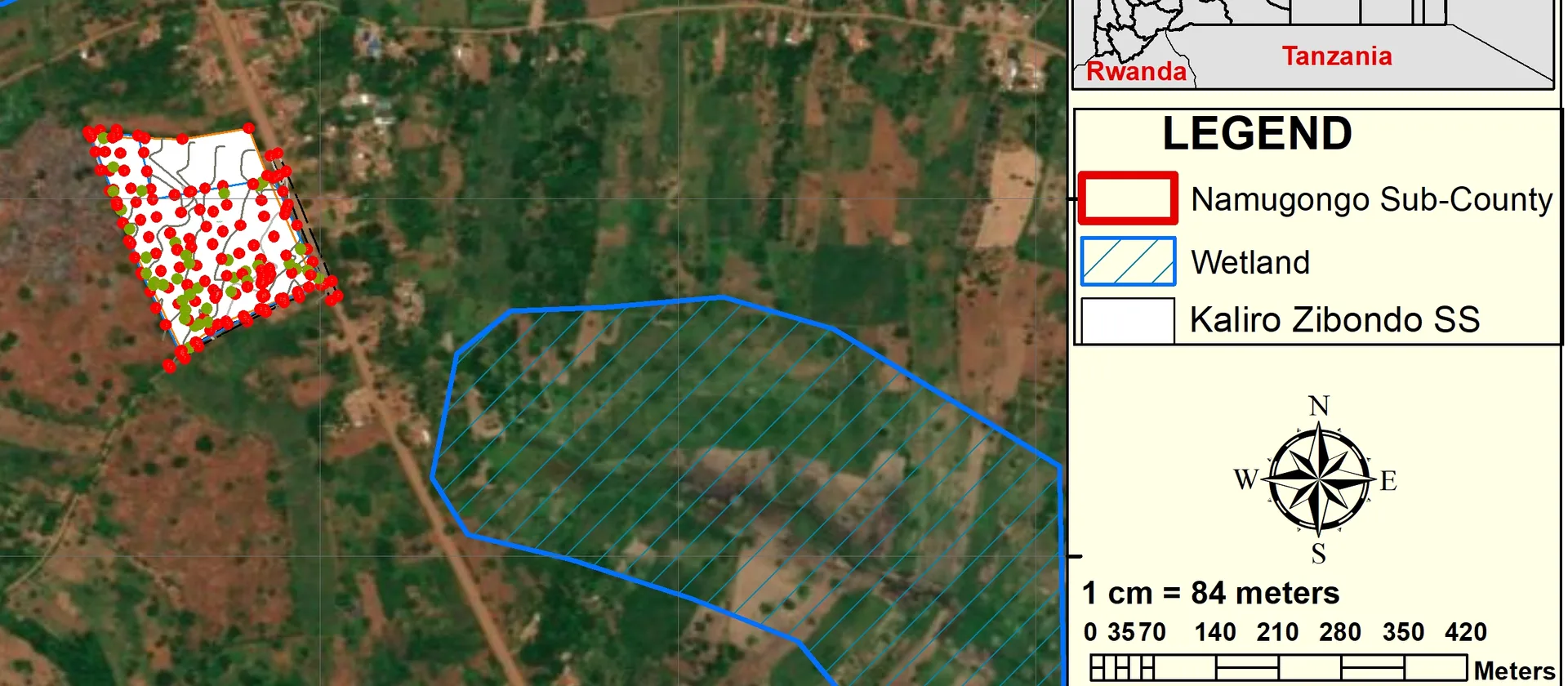
QGIS is a free, open-source desktop GIS application that runs on Windows, macOS and Linux. Whether you are new to GIS or switching from a commercial platform, QGIS gives you a full-featured environment at no cost. In this guide you will install QGIS, load a shapefile, apply a simple style and export a publication-ready map.
QGIS is used by governments, universities, NGOs and independent consultants worldwide. Its plugin ecosystem extends it far beyond basic mapping.
Installation
Download the latest Long Term Release (LTR) from qgis.org. The LTR is recommended for production work because it receives only bug-fix updates, not new features that could change behaviour mid-project. Follow the installer prompts for your operating system — no additional configuration is needed for a standard setup.
Loading data
Drag a shapefile or GeoPackage directly onto the QGIS canvas, or use Layer > Add Layer > Add Vector Layer from the menu. QGIS supports dozens of vector and raster formats natively, including GeoJSON, KML, PostGIS connections and WMS/WFS services. For raster data such as satellite imagery or DEMs, use Add Raster Layer instead.
Coordinate reference systems
When you add a layer, QGIS reads its CRS from the file metadata. If the project CRS differs from the layer CRS, QGIS reprojects on the fly. Always confirm that all layers share a consistent CRS before running any analysis — mismatched projections are one of the most common sources of spatial errors.
Styling your layer
Double-click the layer in the Layers panel to open the Layer Properties dialog, then select the Symbology tab. For a polygon layer, choose a fill colour and outline width that suit your map purpose. For a categorised or graduated style, select the relevant renderer from the drop-down at the top of the tab and assign a field to classify by.
Exporting a map
Open Project > New Print Layout and give the layout a name. Add a map frame by clicking the Add Map button and drawing a rectangle on the canvas. Then add a title text box, a north arrow, a scale bar and a legend. When the layout is complete, use Layout > Export as PDF or Export as Image to produce your final output.
With these four steps you have a working map ready to share or include in a report. As your confidence grows, explore QGIS's processing toolbox for spatial analysis, the field calculator for attribute manipulation, and the atlas feature for generating map series automatically.
Have a mapping challenge?
Let's turn your spatial data into an accurate, useful and visually compelling map.